
Use native API-based two-way calendar sync wherever possible, with one designated write target and all other calendars mapped as conflict-check sources only. That single decision eliminates most double-booking risk before you touch any other setting.
Quick setup checklist:
- Connect your provider via OAuth — authorise your booking system to access your calendar using the platform's built-in connector (Google, Microsoft, or Apple).
- Choose your sync direction — decide whether each calendar relationship is one-way (read only) or two-way (read and write), per calendar pair.
- Run a pre-live conflict check — create a blocking event in your personal calendar, attempt a test booking, and confirm the slot is correctly marked unavailable.
Pro Tip: Designate one calendar as your write target (where confirmed bookings are created) and map every personal or secondary calendar as a busy-only conflict source. This keeps client appointment data out of your personal calendar while still blocking those times.
Key takeaways
Reliable calendar sync for bookings depends on three decisions made at setup: the right protocol (push over polling), a single write target, and deliberate conflict-source mapping.
| Point | Details |
|---|---|
| Use push APIs, not polling | Webhook-based integrations (Google push, Microsoft Graph) close the phantom-slot window that polling leaves open. |
| One write target only | Designate a single destination calendar for confirmed bookings; map all other calendars as busy-only conflict sources. |
| Status-driven sync behaviour | Some platforms (e.g. WooCommerce Bookings) only sync events once a booking reaches Confirmed, Complete, or Paid status. |
| Run the full test checklist | Test single bookings, multi-calendar conflicts, simultaneous bookings, and cancellation flows before going live. |
| Talk2Aiva managed setup | Talk2Aiva handles calendar integration, token management, and pre-live testing for UK service businesses. |
Table of Contents
- What does calendar sync actually do for your booking system?
- How does calendar sync actually work under the hood?
- How to connect Google Calendar for bookings
- How to connect Outlook and Office 365 calendars
- What can iCal and Apple iCloud actually do for scheduling?
- How do you fix common calendar sync connection problems?
- What are the best practices for reliable, double-booking-free sync?
- What data does calendar sync write, and how do you stay GDPR-compliant?
- Why reliable calendar sync is the foundation, not a feature
- Talk2Aiva takes the complexity out of calendar integration
- Sources
What does calendar sync actually do for your booking system?
Calendar integration has two primary functions: conflict checking and event writing. Understanding the difference matters because most sync problems trace back to confusing the two.
Conflict checking means your booking system reads busy and free times from one or more connected calendars before offering a slot to a customer. It does not write anything. It simply asks: "Is this time already taken?"
Event writing means the booking system pushes a confirmed appointment into a destination calendar as a new event, complete with title, time, attendee details, and any conferencing links.
Most booking platforms support three flow patterns:
- Pull-only: the booking system reads availability from your calendar but never writes back. Useful for blocking personal time without creating client-visible events.
- Push-only: confirmed bookings are written to a destination calendar, but external events in that calendar do not affect availability. Simpler, but risks double-booking if your calendar fills up outside the system.
- Two-way mirror: the booking system both reads availability and writes confirmed events. This is the most reliable pattern for professional appointment management.
WooCommerce Bookings illustrates this well: with two-way sync enabled, events created directly in Google Calendar are pulled back into store availability, and bookings sync automatically once they reach Confirmed, Complete, or Paid status. That status-driven behaviour is worth noting because a booking stuck in "Pending" may not appear in your calendar at all.
How does calendar sync actually work under the hood?
The technical distinction that matters most for reliability is push versus polling.

With polling, your booking system checks the calendar API on a schedule — every 5, 15, or 30 minutes. During that window, a slot can appear available to customers even though it has just been taken. That gap is where phantom slots and double-bookings are born.
With push (webhooks or push notifications), the calendar provider notifies your booking system the moment an event changes. The window closes to near-zero. Cal.com's integration architecture demonstrates this approach: it checks availability across all connected calendars in real time and performs conflict detection before offering any slot, using webhook-driven updates from major providers.
The three major protocols you will encounter:
- Google Calendar API — supports push notifications. When configured correctly, Google sends a notification to your booking system within seconds of a calendar change.
- Microsoft Graph (Outlook / Office 365) — supports change notifications, functionally equivalent to webhooks. Requires proper tenant consent and app registration.
- CalDAV / iCal (ICS feeds) — almost always polled, not pushed. Read-only in most implementations. Covered in detail in the iCal section below.
A few terms worth knowing:
- Free/busy: a read-only view of when a calendar is occupied, without exposing event titles or details.
- Write target: the single calendar where your booking system creates new appointment events.
- Sync token: a cursor the API returns so your system can fetch only changes since the last sync, rather than re-reading everything.
- Deduplication: the process of recognising that an event already exists before creating a duplicate.
Prefer providers that support webhook push and metadata-based deduplication. A unique identifier (such as a
calendarSyncId) attached to every synced event lets the sync engine recognise its own copies and stop before creating duplicates or triggering infinite loops.
Pro Tip: When evaluating scheduling integration solutions, ask specifically whether the provider uses push notifications or polling. A 15-minute polling interval is not acceptable for a busy service business taking back-to-back appointments.
How to connect Google Calendar for bookings
Google Calendar is the most common integration for UK service businesses, and the setup is straightforward when you know which permissions to grant.
OAuth scopes and what they allow
When you authorise your booking system to access Google Calendar, you will be asked to grant one or more scopes:
calendar.readonly— read events and free/busy data. Sufficient for conflict checking only.calendar.events— create, update, and delete events. Required if your booking system writes confirmed appointments to Google Calendar.calendar.freebusy— query free/busy information without reading event details. The most privacy-preserving option for conflict checking.
Grant only the scopes your setup genuinely needs. If you are using Google Calendar purely as a conflict source, calendar.freebusy is enough.
Step-by-step connection
- Go to your booking system's calendar settings and select Google Calendar.
- Click Connect and sign in with the Google account that owns the target calendar.
- Grant the requested permissions and return to your booking system.
- Select which calendars to use for conflict checking (you can add multiple, including personal calendars).
- Select the destination calendar where confirmed bookings will be written.
- Set the sync direction: one-way (write only) or two-way (read and write).
- Save and proceed to testing.
Acuity Scheduling's guidance recommends connecting all relevant external calendars and enabling block-off options so that personal events automatically prevent those slots from being offered to customers.
Pre-live test checklist
- Create a blocking event in your personal Google Calendar covering a 30-minute slot.
- Attempt to book that slot via your booking page. It should be unavailable.
- Create a test booking in an open slot. Confirm the event appears in your destination calendar with the correct title, time, and attendee details.
- Update the booking (change the time). Confirm the calendar event updates accordingly.
- Cancel the booking. Confirm the calendar event is removed.
Pro Tip: Create a dedicated test calendar in Google and use it as your write target during setup. Keep your real calendar mapped as a busy-only conflict source. Once testing is complete, switch the write target to your live calendar.
For businesses that also automate appointment confirmation notifications, verifying that calendar events trigger downstream automations correctly is part of this same test run.
How to connect Outlook and Office 365 calendars
Microsoft 365 integrations add a layer of complexity that catches many administrators off guard: the difference between delegated permissions and application permissions, and the role of tenant admin consent.

Permissions and the Microsoft Graph
Your booking system connects to Outlook via the Microsoft Graph API. The scopes it needs are:
Calendars.Read— read calendar events and free/busy data.Calendars.ReadWrite— create, update, and delete events in the destination calendar.Calendars.Read.Shared— read shared or delegated calendars.
For personal Microsoft accounts, the user grants consent directly during OAuth. For organisational (work) accounts, a tenant administrator may need to grant consent on behalf of the whole organisation before individual users can authorise the connection.
Step-by-step connection
- In your booking system, select Outlook / Office 365 as the calendar provider.
- Sign in with your Microsoft account. If your account is managed by an organisation, you may see a prompt requesting admin approval.
- If admin consent is required, contact your IT administrator and share the app's client ID and the required permission scopes.
- Once consent is granted, return to the booking system and select your conflict-check calendars.
- Choose your destination calendar for confirmed bookings.
- Configure sync direction per calendar pair.
- Save and run the same pre-live test checklist described in the Google section above.
Common pitfalls to watch for:
- Token expiry: Microsoft access tokens expire. Your booking system must handle token refresh automatically, or connections will silently fail.
- Tenant conditional access policies: some organisations block third-party app access entirely. Confirm with IT before setup.
- Shared mailbox calendars: these require application permissions rather than delegated permissions, which changes the consent flow.
Microsoft Learn community documentation covers the most common tenant and permission troubleshooting scenarios for Bookings and Outlook calendar sync.
Pro Tip: If you manage multiple organisational accounts, validate that each account's consent and token refresh are handled independently. A single expired token in a multi-account setup can silently break sync for one staff member without affecting others.
What can iCal and Apple iCloud actually do for scheduling?
ICS feeds and CalDAV are useful, but they come with hard limits that make them a poor choice for professional appointment calendar sync in a busy service business.
What iCal/ICS feeds can do:
- Provide a read-only view of calendar events to any system that subscribes to the feed URL.
- Block time in your booking system when an external event exists in the feed.
- Work across platforms (Google, Apple, Outlook all support ICS subscription).
What they cannot do reliably:
- Push updates in real time. ICS feeds are polled, typically every 15–60 minutes depending on the subscribing platform.
- Write events back to the source calendar. The feed is one-directional by design.
- Guarantee that a cancellation or reschedule appears quickly enough to prevent a double-booking.
WooCommerce's documentation notes that iCal/ICS feeds are read-only and polled periodically, making them useful for visibility but insufficient for real-time professional scheduling.
Relying on an ICS feed as your primary conflict-check mechanism for a busy service business is a risk. A client books a slot at 9:00 AM. Your personal calendar has a conflicting event added at 8:55 AM. If your booking system last polled at 8:45 AM, that slot appears open. The double-booking happens before the next poll runs.
For Apple iCloud specifically, CalDAV support exists but many booking platforms fall back to polling rather than true push, because Apple does not offer a public webhook API equivalent to Google's push notifications or Microsoft Graph change notifications. Check your booking system's documentation to confirm whether it uses CalDAV or a polled ICS feed for iCloud connections.
Test checklist for iCal/ICS connections:
- Subscribe to the ICS feed and add a blocking event in the source calendar.
- Wait for the next poll cycle (check your platform's documented interval).
- Confirm the slot is blocked in your booking system after the poll.
- Accept that cancellations and updates will carry the same latency.
If your business takes more than a handful of bookings per day, treat ICS as a fallback or supplementary visibility tool, not your primary scheduling integration. For a deeper comparison of feed-based versus API-driven approaches, the iCal limitations analysis on the SWASCO blog is worth reading.
How do you fix common calendar sync connection problems?
Most sync failures fall into a small number of categories. Knowing which status you are looking at tells you exactly what to do next.
Common connection statuses and what they mean:
- Unauthorised / token expired: the OAuth token has lapsed. The user must reauthorise the connection.
- Permission changed: a scope was revoked (often by a Google or Microsoft account security review). Reconnect and re-grant permissions.
- API rate limit: your booking system has sent too many requests in a short window. Usually self-resolving; check logs for frequency.
- Transient failure: a temporary API outage. The system should retry automatically; if not, trigger a manual poll.
Step-by-step troubleshooting
- Check the connection status in your booking system's calendar settings. Most platforms display a status badge (Connected, Error, Expired).
- Reauthorise the connection by clicking Reconnect and completing the OAuth flow again. This resolves the majority of token expiry issues.
- Verify admin consent (Outlook/Office 365 only). If the connection fails immediately after reauthorisation, the tenant policy may have changed.
- Trigger a manual poll or sync if your platform supports it. This forces an immediate refresh rather than waiting for the next scheduled job.
- Examine the sync logs. Look for HTTP error codes: 401 (unauthorised), 403 (forbidden/permission), 429 (rate limit), 500/503 (server error on the provider's side).
- Delete stale transient data. Some platforms cache failed sync attempts. Clearing these and reconnecting resolves ghost conflicts.
- Contact provider support if the error persists after reauthorisation and log review. Share the error code and the timestamp of the last successful sync.
Booking.com's partner documentation follows a similar stepwise approach for channel calendar synchronisation, which is useful to reference when troubleshooting multi-channel availability conflicts.
Pro Tip: Add a quarterly reauthorisation reminder to your internal admin calendar. OAuth tokens can expire silently, and a broken sync connection may not surface until a customer reports a double-booking.
What are the best practices for reliable, double-booking-free sync?
Reliability in booking calendar management is less about which platform you choose and more about how you configure it. These practices apply regardless of provider.
Core configuration principles:
- Use webhook-based push integrations wherever available. Polling creates a window for phantom slots; push closes it.
- Designate exactly one write target calendar. Writing confirmed bookings to multiple calendars creates duplication and complicates cancellation handling.
- Map all personal and secondary calendars as conflict-check sources only, with privacy set to busy-only.
- Perform a final free/busy check at the moment of booking confirmation, even if your sync is otherwise real-time. This is the last line of defence against race conditions.
- Attach a unique identifier (such as a
calendarSyncId) to every event your system creates. This lets the sync engine recognise its own events and avoid creating duplicates on re-sync.
Pre-live testing framework
- Unit test — single booking: create one booking, confirm the event appears in the write target, update it, confirm the update propagates, cancel it, confirm the event is removed.
- Multi-calendar conflict test: add blocking events to each connected conflict-check calendar in turn and confirm each one correctly blocks the corresponding slot.
- Simultaneous booking stress test: simulate two booking attempts for the same slot at the same time and confirm only one succeeds. This detects race conditions in your free/busy check logic.
- Cancellation and reschedule flow: cancel a confirmed booking and verify the calendar event is deleted, not just updated. Reschedule and verify the original event is replaced, not duplicated.
- Token expiry simulation: revoke and reconnect the calendar token, then confirm sync resumes correctly without manual intervention beyond reauthorisation.
Pro Tip: Include deduplication metadata on every synced event from day one. Retrofitting it after a sync loop has already created hundreds of duplicate events is significantly more work than building it in at setup.
For businesses using SMS appointment reminders, confirming that calendar events correctly trigger downstream notification workflows is part of this same testing phase.
What data does calendar sync write, and how do you stay GDPR-compliant?
When your booking system writes an event to a calendar, it typically includes:
- Start and end time
- Event title (often the service name and client name)
- Description (which may include booking reference, notes, or client contact details)
- Attendee email addresses
- Conferencing links (Zoom, Google Meet, Teams)
Each of these fields carries data minimisation implications under UK GDPR. You do not always need all of them in the calendar event.
Privacy configuration options to consider:
- Busy-only mode for conflict calendars: the booking system reads only free/busy status, never event titles or descriptions. Use this for all personal calendars.
- Suppress attendee data: avoid writing client email addresses to calendar events unless there is a clear operational reason. A booking reference is usually sufficient.
- Redact descriptions: configure the event description to contain only internal reference data, not client-facing notes or sensitive details.
GDPR compliance checklist for administrators
- Identify your lawful basis for writing client data to calendar events (typically legitimate interests or contract performance).
- Document the data flow in your privacy notice: what is written, where it goes, and who can access it.
- Confirm your calendar provider is a data processor under UK GDPR and that a Data Processing Agreement (DPA) is in place (Google Workspace and Microsoft 365 both provide standard DPAs).
- Limit access to the write target calendar to staff who genuinely need it. Shared team calendars with broad access are a common source of unnecessary data exposure.
- Secure your OAuth tokens. Treat them as credentials. Store them encrypted and rotate them on a defined schedule.
Pro Tip: Choose busy-only conflict feeds for all personal calendars and document this decision explicitly in your privacy notice. It is the simplest way to demonstrate data minimisation to a regulator.
For businesses where follow-up automations are triggered by calendar events, the same data minimisation principle applies downstream: only pass the fields each automation genuinely needs.
Why reliable calendar sync is the foundation, not a feature
Most service businesses discover their sync setup is broken only after a client complains about a double-booking or a missed appointment. By then, the damage is done: a lost fee, a frustrated customer, and a staff member spending an hour untangling the diary.
The businesses that avoid this pattern share one habit: they treat calendar sync as infrastructure, not a setting to configure once and forget. They designate a write target, map conflict sources deliberately, run a proper test before going live, and schedule reauthorisation checks. They also choose integrations that use push APIs rather than polling, because the difference between a 30-second update and a 30-minute one is the difference between a clean diary and a phantom slot.
For UK service businesses specifically, the stakes are higher than they appear. A salon, dental practice, or estate agency running back-to-back appointments has almost no tolerance for a 15-minute polling gap. One double-booking in a day can cascade into a full afternoon of rescheduling calls.
The technical setup described in this guide is not complex. But it does require deliberate decisions at each step: which direction, which scopes, which calendars as sources versus targets. Getting those decisions right at the start saves significant operational overhead later.
Talk2Aiva takes the complexity out of calendar integration
Configuring OAuth scopes, managing token expiry, and running pre-live stress tests is straightforward when you know what you are doing. For many small service businesses, though, it is time that simply does not exist.
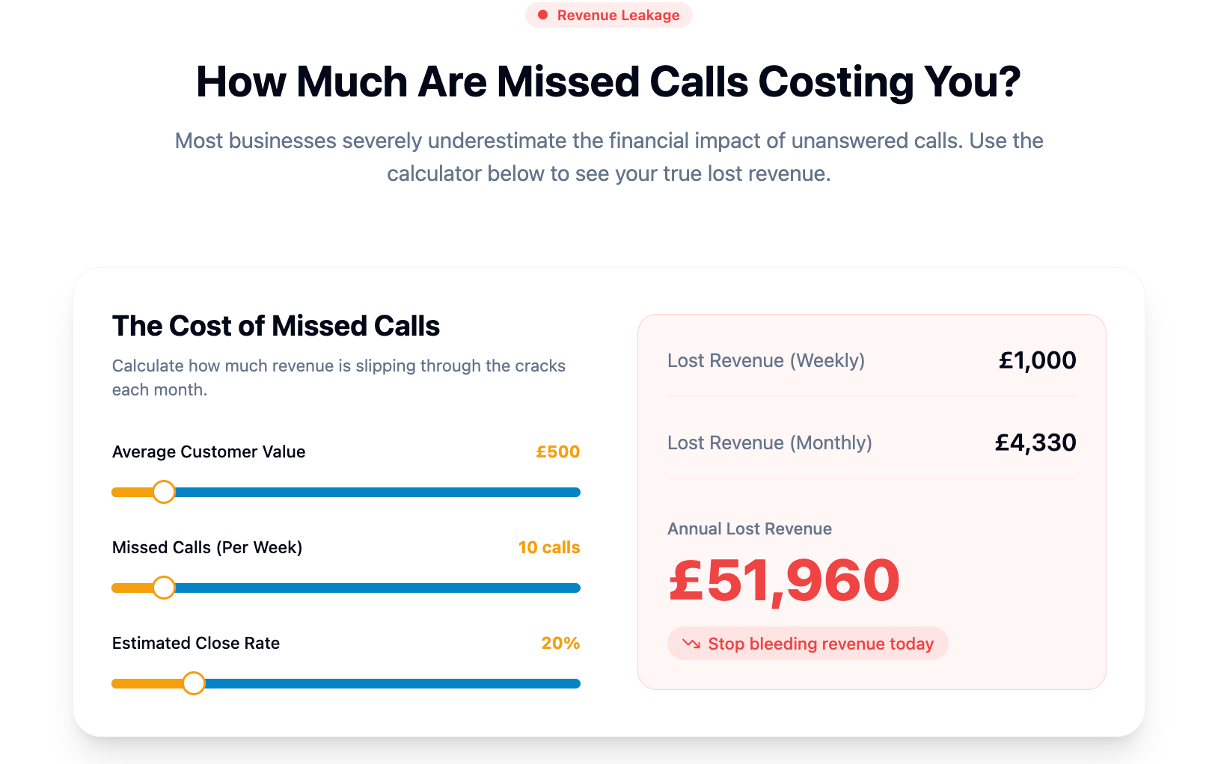
Talk2Aiva by SWASCO provides fully guided calendar integration as part of its AI receptionist and revenue recovery system for UK service businesses. The onboarding process includes two-way calendar sync setup, token and reauthorisation handling, and a pre-live test checklist run by the Talk2Aiva team before your system goes live. You get the reliability of a properly configured API-based sync without spending days reading provider documentation.
If your business is losing bookings to missed calls or diary conflicts, Talk2Aiva's managed setup is the practical next step. Get in touch to see how it fits your workflow.
Sources
The sources below are the most authoritative starting points depending on your platform.
Provider documentation:
- How to Sync Acuity Scheduling With Third-Party Calendars - Acuity Scheduling
- WooCommerce Bookings: Google Calendar Integration Documentation - WooCommerce
- How to synchronise your calendars across channels
- How can I sync Bookings and Outlook calendar and also ... - Microsoft Learn
Where to start based on your platform: