
The fastest way to get true two-way sync is to add your Google account directly to Outlook, where your client supports it. If you only need to view someone's schedule, subscribe to their calendar's iCal (ICS) link instead. For a one-off transfer, export and import an .ics file. Your account type (Exchange, Microsoft 365, or IMAP) decides how well any of these actually holds up.
TL;DR:
- Native Outlook-Google sync supports bidirectional updates, but may encounter issues with Meet links and formatting quirks that require testing.
- Subscribing to Google Calendar via iCal URL provides a delayed, read-only view, refreshed roughly every few hours rather than instantly.
- Exporting and importing ICS files creates a static snapshot, suitable for migrations or archiving but not ongoing synchronization.
- Publishing Outlook calendars as ICS links enables Google Calendar to display availability, but shared links are not suitable for sensitive details.
- Third-party sync tools are recommended when accurate, full-featured mirroring is essential, but they require careful testing and avoiding overlapping methods.
Table of Contents
- Add your Google account to Outlook for two-way sync
- How do you subscribe to a Google calendar in Outlook?
- Export and import .ics for a one-time snapshot
- Publish your Outlook calendar so it shows in Google Calendar
- When should you use a third-party sync tool?
- Troubleshooting checklist: how to confirm your sync is working
- Why reliable calendar sync matters more for bookings than personal use
- Prefer a guided setup instead of doing it yourself?
- Sources
Add your Google account to Outlook for two-way sync
If you're on Outlook for Microsoft 365 or the new Outlook, adding your Google account gives you the closest thing to live, bidirectional sync. Older desktop clients handle this differently, and some legacy builds don't support it at all, so check which version you're running before you start.
- Open Outlook and go to File > Add Account (or Settings > Accounts in the new Outlook).
- Enter your Google email address and sign in through the pop-up window.
- Grant Outlook permission to access your Google Calendar when prompted.
- Wait for the account to sync, then confirm your Google calendars appear in Outlook's calendar pane.
This method syncs events and edits both ways, so a change made in Google Calendar shows up in Outlook and vice versa. It's not flawless: Google Meet links sometimes render as plain text, and certain attachments or formatting quirks don't always carry across cleanly. Once set up, create a test event in one app and refresh the other to confirm it appears.
Pro Tip: If your Google account uses two-factor authentication, Outlook may ask you to re-authenticate every few months as tokens expire. Don't panic if sync suddenly stops. Sign out and back in first.
How do you subscribe to a Google calendar in Outlook?
Subscribing gives you a read-only, periodically refreshed view of a Google calendar. It's the right call when you want to see someone else's schedule without editing it, or when privacy means you shouldn't have full write access.
- In Google Calendar, open Settings for the calendar you want to share, then find Integrate calendar.
- Copy the secret address in iCal format (or the public address if the calendar is shared publicly).
- In Outlook, go to Add calendar > Subscribe from web and paste the URL.
- Name the calendar and confirm.
Client behaviour varies slightly between Outlook on the web and the desktop app, so check both if one seems out of sync. Microsoft's own guidance confirms that importing a Google Calendar as an .ics file produces a static copy, whereas subscribing via the iCal URL is what enables ongoing updates. Refresh intervals aren't instant. Expect updates roughly every few hours rather than in real time, since Microsoft 365 calendar sharing treats external subscriptions differently from internal tenant updates.
Export and import .ics for a one-time snapshot
Sometimes you don't need ongoing sync at all. You just need a one-off copy, perhaps when migrating to a new system or archiving old bookings.
- Export from Google Calendar via Settings > Import & export, or from Outlook via File > Save Calendar.
- Import the .ics file into the destination app using its own import tool.
- Use this for migrations, archives, or bulk transfers of past events.
- Watch for timezone mismatches, recurring event rules that don't map cleanly, and attendee RSVPs that won't update after the import finishes.
Treat this as a snapshot, not a sync. Anything that changes on the original calendar afterwards stays invisible to the imported copy.
Publish your Outlook calendar so it shows in Google Calendar
Businesses often need this the other way round: showing Outlook availability inside a personal Google Calendar. Publishing an Outlook calendar generates an iCal URL that Google can subscribe to.
- In Outlook on the web, go to Settings > Calendar > Shared calendars, select the calendar, and choose Publish.
- Copy the generated ICS link.
- In Google Calendar, click Other calendars > From URL and paste the link.
- Confirm the calendar appears under "Other calendars" in the sidebar.
This is a one-way feed, refreshing on a similar delayed schedule to Google's own ICS subscriptions rather than updating instantly. Be deliberate about what you publish. Once a calendar's link is shared, anyone with that URL can view its contents, so avoid publishing anything with sensitive appointment details.
When should you use a third-party sync tool?
Native methods cover most needs, but they fall short when you need guaranteed mirroring of attendees, reminders, and deletions across both directions. That's when a dedicated sync tool earns its place. Open-source projects like OutlookGoogleCalendarSync document just how tricky this gets, since Google and Outlook use different schemas for handling attendees, reminders, and privacy flags, and any tool has to map those attributes correctly or risk losing data.
Before trusting one, check:
- Which Outlook client versions it supports (classic desktop vs. the new Outlook aren't always treated the same).
- How it handles recurring events and deletions across both calendars.
- What its documentation says about data security and privacy handling.
Pro Tip: Pilot any third-party tool on a small test calendar first. Add a recurring event, an attachment, and an optional attendee, then watch how the tool handles each before trusting it with your main calendar. Never run two sync methods on the same calendar simultaneously. Overlapping routes are one of the most common causes of duplicated or vanishing events.
Troubleshooting checklist: how to confirm your sync is working
Most sync failures trace back to one of a handful of causes, and most are quick to fix.
- Re-authenticate your Google or Microsoft account if sync has stalled. Expired tokens are the usual culprit.
- Check calendar permissions to confirm Outlook or Google still has access.
- Remove any duplicate sync method (an old subscription alongside a native account, for instance) that could be causing double entries.
- Update Outlook and its mobile app, and clear the calendar cache if events look stuck.
- Verify mobile sync by confirming the account is toggled on for calendars in your phone's account settings, with the right calendars checked in the app's display list.
ICS subscriptions typically refresh every few hours rather than instantly, so Microsoft's own documentation advises against expecting real-time updates from that method. To verify everything works, create a test event, force a manual refresh where your client allows it, then check both the web and mobile versions before relying on it for anything important.
Why reliable calendar sync matters more for bookings than personal use
A missed sync on a personal calendar is an inconvenience. For a service business, it's a double-booked client or a no-show that costs real money. When your booking system, calendar, and reminders aren't talking to each other properly, gaps appear exactly where they hurt most: between a customer confirming a slot and your team actually seeing it land in their diary.
This is where DIY sync methods start to show their limits. Subscribing to an ICS feed is fine for checking someone's availability, but it's not built to carry booking confirmations, cancellations, and reschedules reliably at business volume. Once multiple staff calendars and a booking flow are involved, a managed setup tends to outperform a stack of manual workarounds. Talk2Aiva's guide on setting up calendar sync for bookings walks through exactly how that looks in practice, and the same logic extends to automated reminder systems that cut down on no-shows once calendars are actually talking to each other properly.
— James Paul
Prefer a guided setup instead of doing it yourself?
If juggling ICS URLs, refresh delays, and re-authentication isn't how you want to spend your afternoon, Talk2Aiva handles calendar and booking sync as part of a fully managed setup, so you're not the one troubleshooting duplicate events at 9pm.
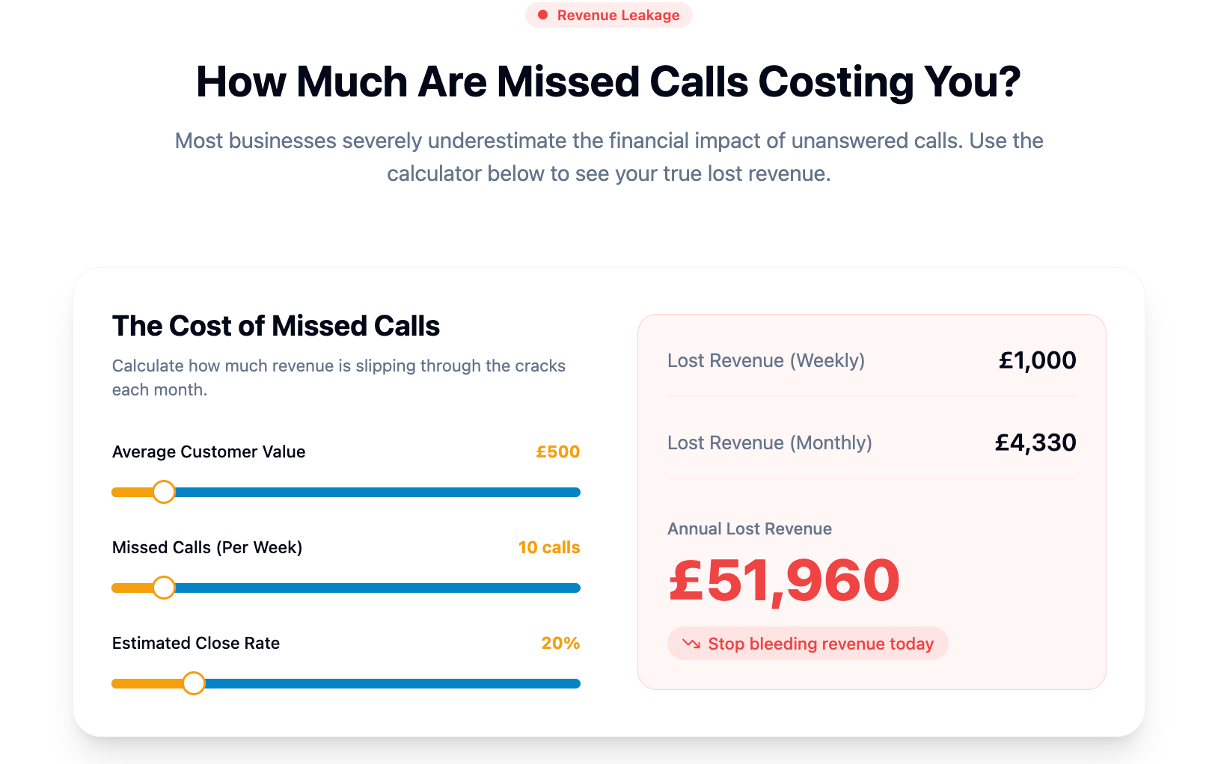
Our solution is built for service businesses that need calendars, bookings, and follow-ups working together without constant manual fixing. Instead of stitching together an ICS subscription here and a native account sync there, hoping neither breaks, the whole system is set up once and supported on an ongoing basis. This includes onboarding, initial configuration, and technical support in case of changes on Google's or Microsoft's end that might affect calendar sync setups. If you're also automating reminders or reviews, Talk2Aiva connects into related workflows like Google Reviews automation too. For teams also managing broader messaging workflows, tools like AI-driven content scheduling show how calendar logic extends beyond appointments. If missed bookings or sync headaches are costing you clients, get in touch with Talk2Aiva to see what a managed setup would look like for your business.